- Sign in at plans.meetplani.com/login with your mobile number. Plani texts you a code.
- Open the federal client from Clients. Set the date range first, then click Send to eVoucher and download both files.
- In eVoucher, open the CJA-20. New one: Appointments' List, click the case, then Create. Existing one: My Active Documents, click Edit.
- Down the left side, under Actions, click Import Service Entries (.csv). This is the step nobody finds.
- Pick the .csv, not the PDF.
- Check that eVoucher's entry count matches the number Plani showed you.
- On Claim Status, set dates covering every service date in the file. Review, then submit.
The one that bites: importing wipes every service line already on that voucher. Start on an empty CJA-20.
What this is
Since eVoucher release 6.6, a CJA-20 or CJA-30 can take your service entries from a comma-separated (.csv) file instead of one line at a time. You get the file out of your timekeeping system, eVoucher reads it, and the Services tab fills in.
The file has to match eVoucher's format exactly, but if your time is in Plani you never touch it. Plani writes the file in that format, with the service types already mapped. (If your time lives somewhere else, the format is at the bottom of this page.)
Step 1: sign in
Go to plans.meetplani.com/login and type your mobile number. Plani texts back a six-digit code. There is no password and nothing to install.
You do this once per device. The session lasts a month and keeps renewing while you use it, so the link just opens next time.
If someone else does your billing, a paralegal, a bookkeeper, a spouse who handles the books, they need their own number on the account before this works. The attorney can text Plani and ask.
Step 2: open the client and set the range
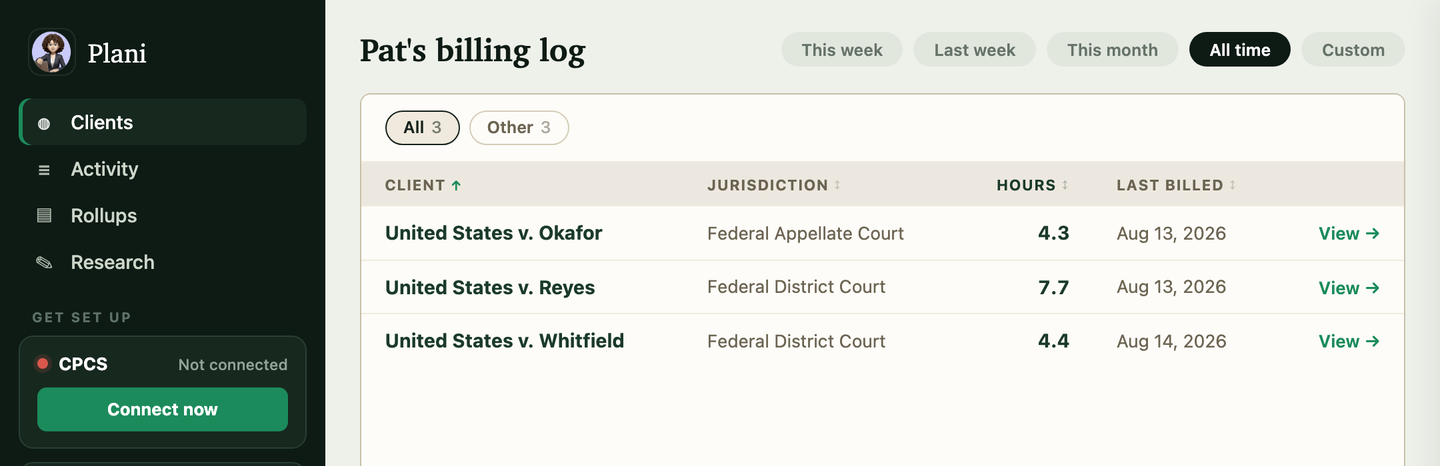
You land on your list of clients. Down the left side are Clients, Activity, Rollups and Research, and Clients is what opens first. On a phone those four sit in a strip above the list instead. Click the name of the case you are billing.
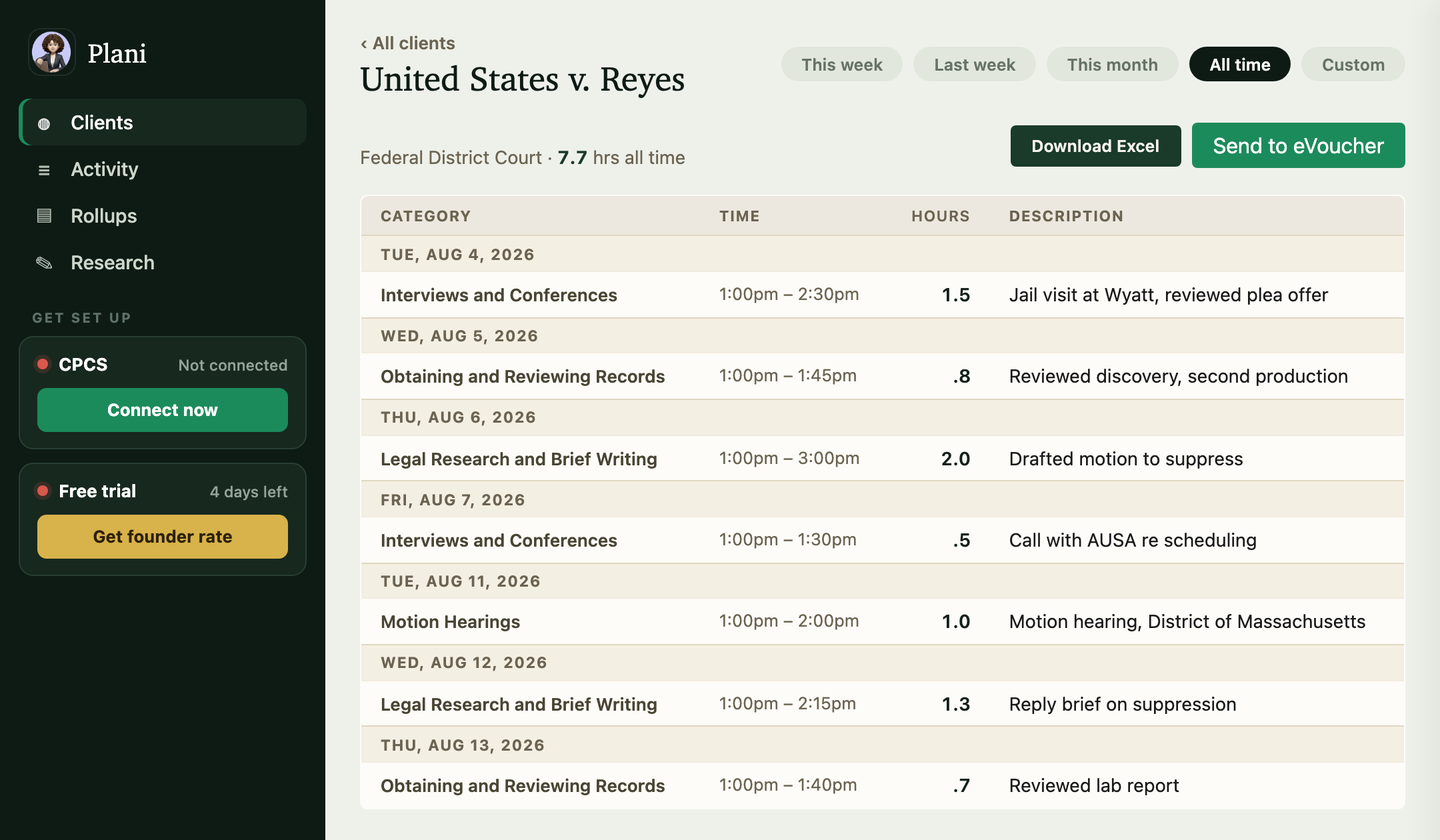
Set the date filter before you do anything else. Across the top are This week, Last week, This month, All time and Custom, and whatever is selected decides what goes in the file. It follows you from the client list into the client's page, so a case opened from a "last week" list is still on last week.
This is the step people miss, and it is the one that matters most, because of what importing does to a voucher. An interim CJA-20 covers a period, so a partial file is usually right. A final one is not. If you are not sure, All time is the safer mistake.
Step 3: download the file
On a federal case, near the top of the client's page, there is a Send to eVoucher button sitting next to Download Excel. If you do not see it, the case is not set to a federal jurisdiction yet. Text Plani and say so.
Nothing downloads when you click it. A box opens first. It tells you how many entries and hours are about to go, the date range they cover, and names anything being held back and why, so you can fix those and download again rather than find the gap later.
Importing replaces every service line already on that voucher. Anything you typed in by hand is gone. The Administrative Office says the same thing: start on a new or empty CJA-20 wherever you can.
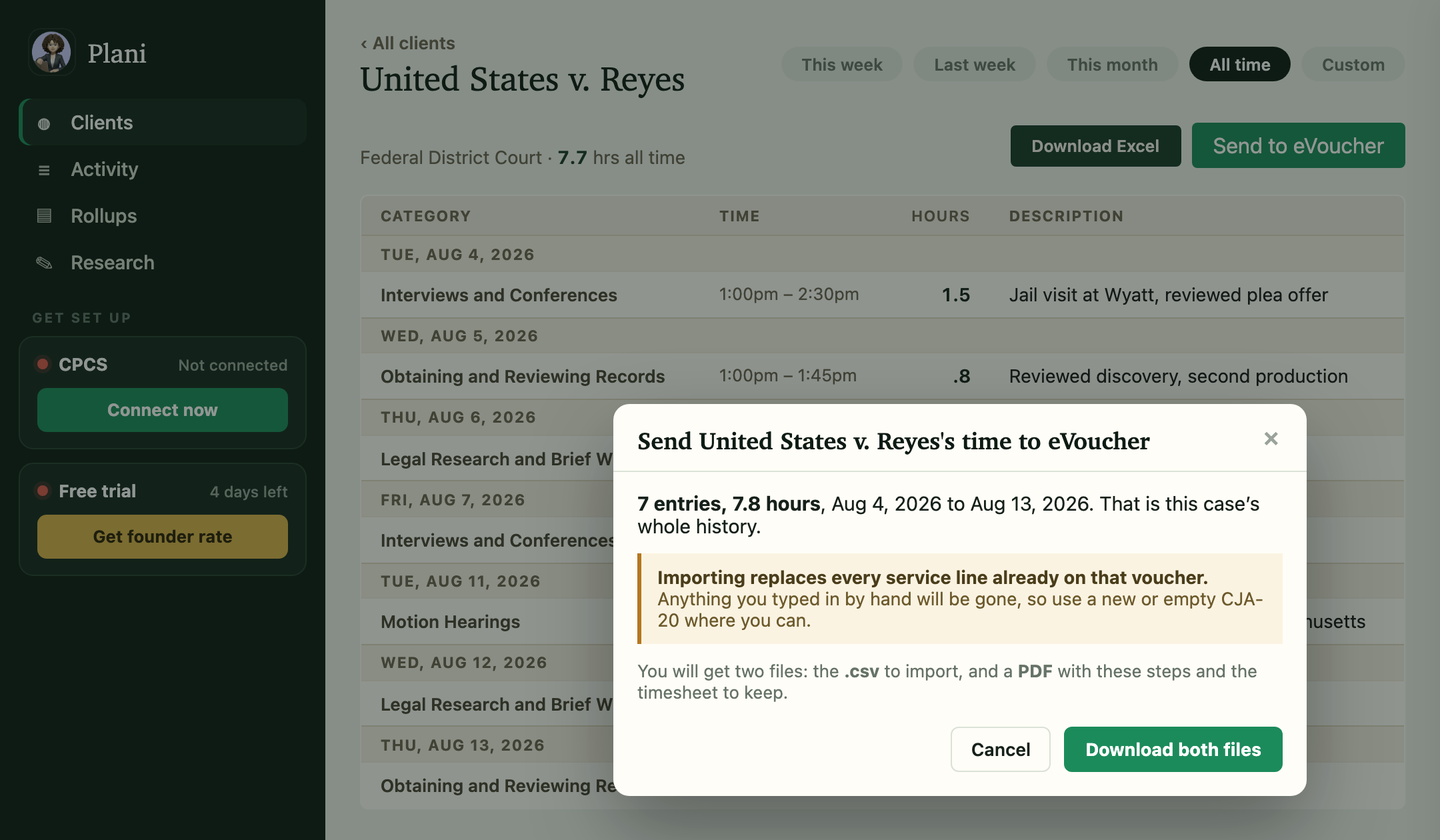
Two files come down. A .csv, which is the one you import, and a PDF with these steps and a printable copy of the timesheet. Do not upload the PDF.
Step 4: open the voucher
There are two ways in, depending on whether the CJA-20 exists yet.
New voucher. On the eVoucher home page, expand Appointments' List and click the case. On the Appointment Info page, find Create New Voucher down the left side and click Create next to CJA-20.
Voucher you already started. On the home page, under My Active Documents, click Edit on the CJA-20.
Step 5: find Import Service Entries
This is the link everybody walks past. Once the voucher is open, look down the left side of the page, below Tasks, for a heading called Actions. Under it is Import Service Entries (.csv).
It is a small text link in a sidebar, not a button, which is why panel attorneys have keyed vouchers by hand for years without knowing it was there. There is a second way to reach it: go to the Services tab, where the same thing appears as an Import Service Entries (.csv) button in the middle of the page.
Click it, choose the .csv you downloaded, and click Open.
If you want to see it before you go looking, the Administrative Office's own job aid on importing service entries has a screenshot of that sidebar with the link circled in red, on page 2.
Step 6: check the number
eVoucher shows a green banner saying how many entries it added and naming the file. Compare that number against the one Plani showed you in the box. They should match.
That comparison is the only proof you have that nothing was dropped in transit. It takes three seconds. Do it every time.
Step 7: set the Claim Status dates
Go to the Claim Status tab and set the period so it covers every service date in the file. If a date in your entries falls outside the claim period, eVoucher rejects the import without explaining which one or why, and you will lose twenty minutes hunting for it.
Step 8: review and submit
Read the voucher. Submitting is yours and always will be. Plani does not submit federal vouchers, and neither should anything else with your bar number on it.
If you have an associate on the voucher
Order matters here and the failure is silent. The lead attorney has to import first. If the associate's entries are already on the voucher when the lead imports, the import overwrites them. Once the lead's entries are in, the lead sets the associate's dropdown in Associate Info to On Voucher, Can Edit, and the associate signs in and imports their own.
What does not come across
Travel time imports like any other service line. Travel mileage is an expense, not a service, so it lives on the Expenses tab and stays manual. Same for photocopies, postage, transcripts and everything else that is a cost rather than an hour.
This is one of the places federal work differs from Massachusetts state work. In CPCS eBill, travel is paid on a separate mileage form and left out of your hours entirely. On a CJA-20 the hours are hours. Do not carry a habit from one system into the other.
If your time is not in Plani
You can still import, you just have to build the file yourself. Four columns are required on every line, and two more have to appear in the header row even when they hold nothing:
| Column | Required? |
|---|---|
| Date | Yes |
| Hours | Yes |
| Description | Yes |
| Service Type | Yes, and it has to be a value eVoucher recognizes, like "16b" or "16b. Obtaining and Reviewing Records" |
| Doc# | Header only. Data optional, though your court may want it |
| Pages | Header only. Data optional |
eVoucher also has a sample spreadsheet linked on the Services tab you can copy the headings from. Get one column name wrong and the import fails without telling you which.
Why this is not automatic
Plani files Massachusetts CPCS time into eBill on its own, overnight. It does not do that with eVoucher, and the reason is not that we have not gotten to it.
eVoucher sits behind Login.gov with two-factor and identity proofing. That is a good thing. It also means the last step is yours by design. Anything promising to log into eVoucher for you is asking for credentials it should not have. We get your time into the right format and put the file in your hand. You do the import.